Compare approved design with staging
Unlint turns the differences between an approved design and the staging build of the same screen into findings a team can own, fix, and verify — and says whether the release is ready.
One screen, three pictures
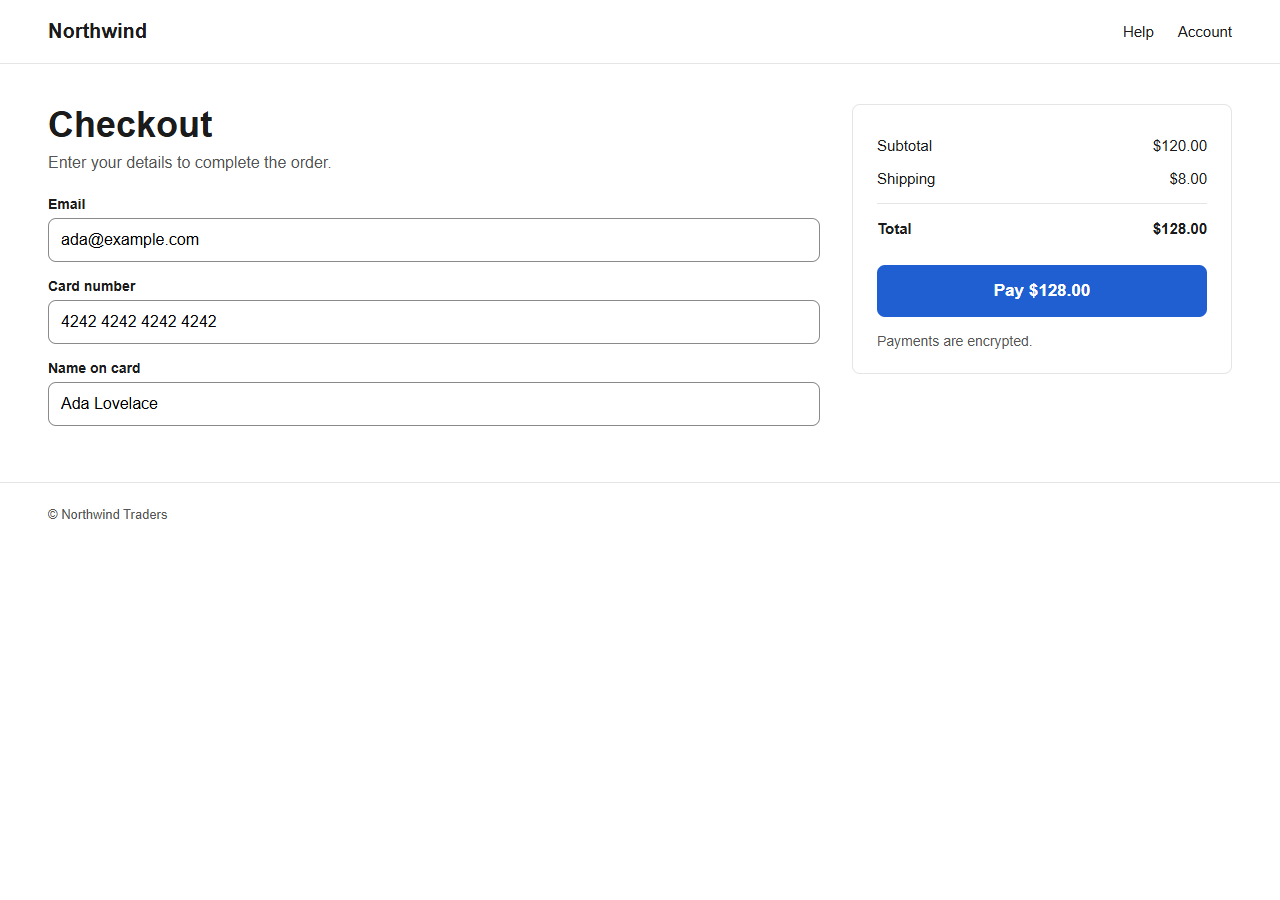
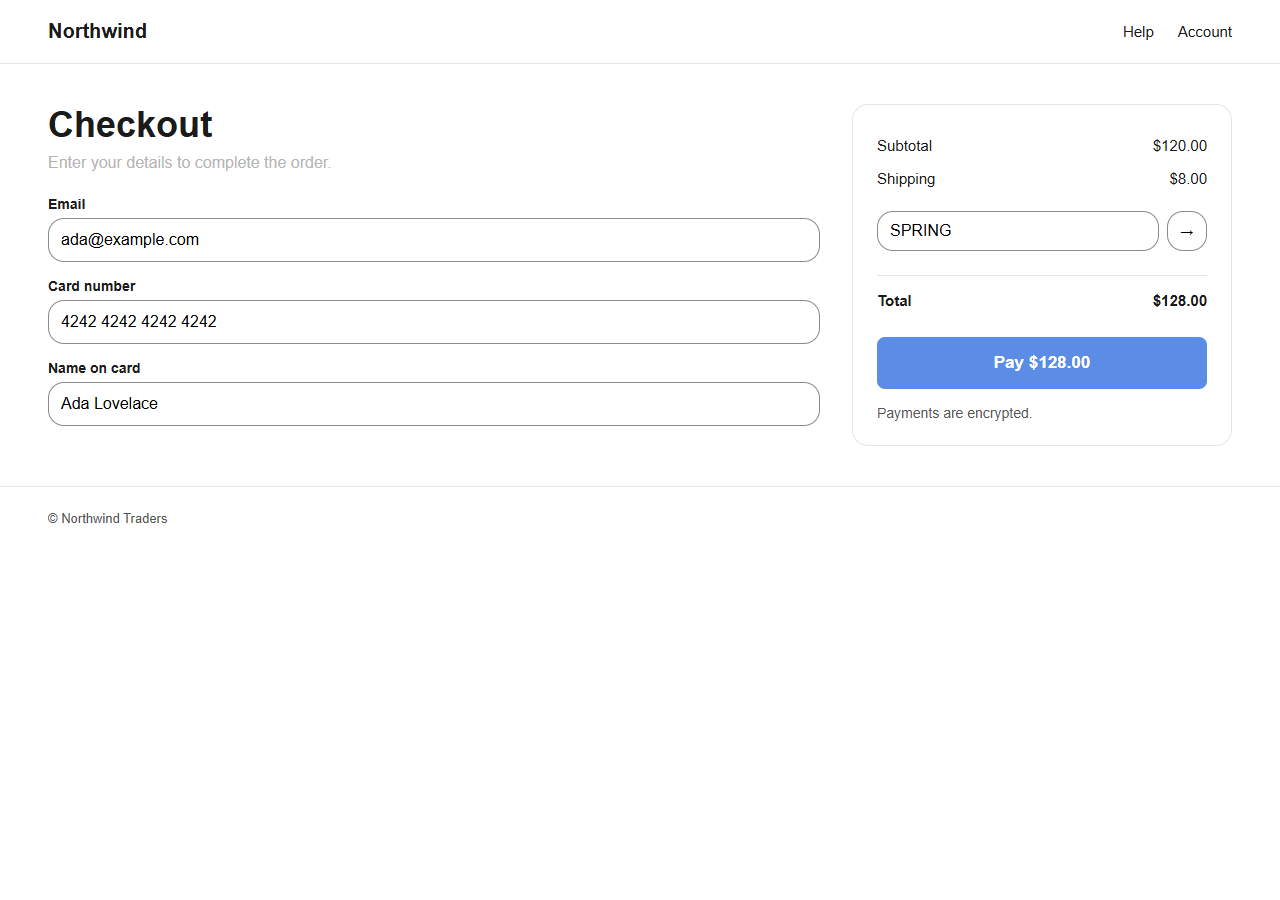
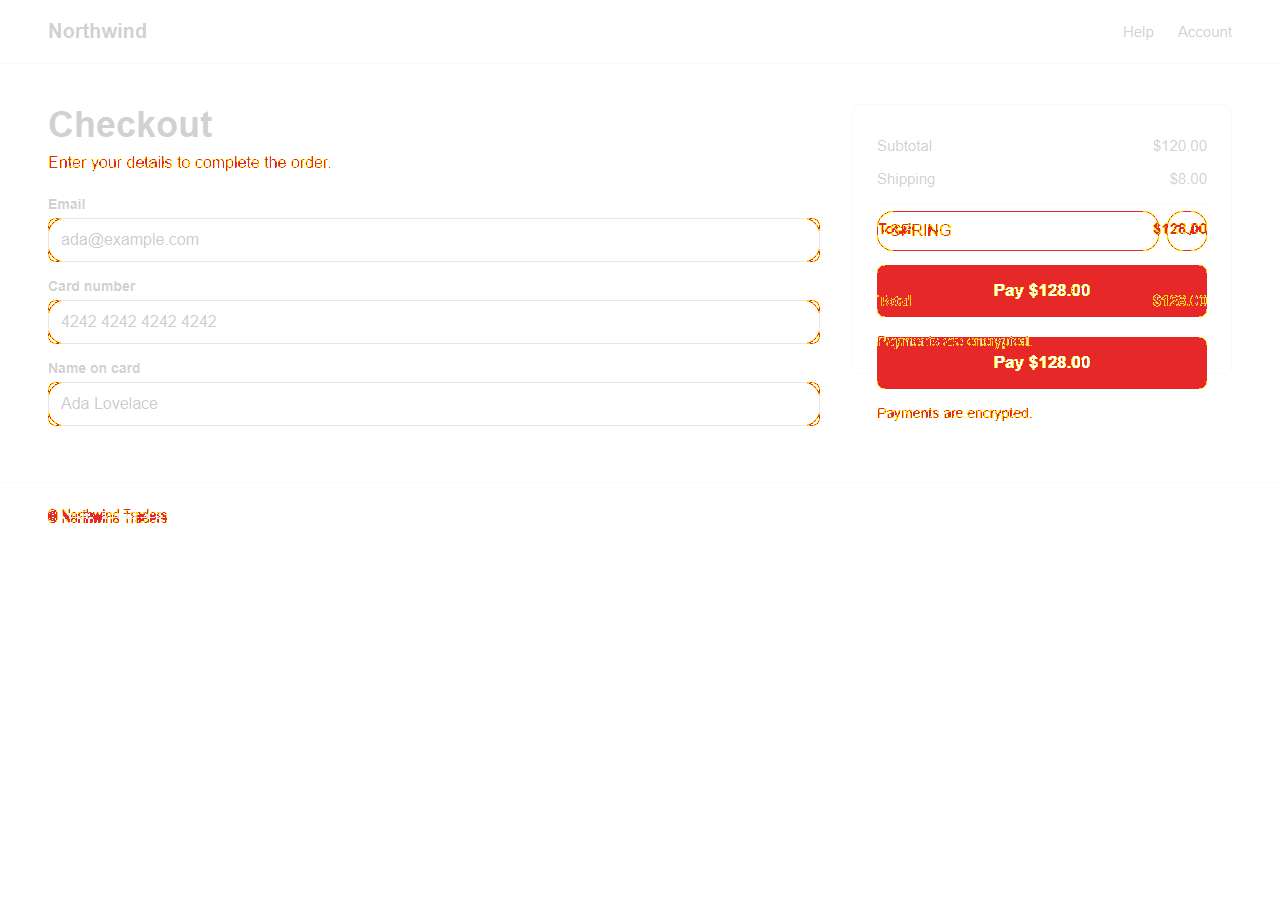
Every image below came out of a real check against the checkout fixture in this repository. The third is the comparison itself: its dense regions become findings.
How a check works
- Step 1
Add a screen
An approved design — a Figma frame or a PNG you exported — the staging page that should match it, and the viewport to compare them at.
- Step 2
Run a check
Unlint opens staging in headless Chrome at that viewport, compares it with the approved design pixel by pixel, and runs axe-core WCAG A and AA rules on the same page.
- Step 3
Resolve and verify
Each difference becomes a finding carrying both crops. Give it an owner, fix it, and run the check again: what is gone is verified, what comes back reopens with its history.
What a check produces
The numbers below are the ones the demo run actually scored, not an illustration.
Ownership, not a backlog
A finding nobody owns cannot be verified. Assigning it moves it to Needs fix; the owner moves it to Ready to verify; the next check verifies it — or reopens it and hands it back.
A report you can print
Readiness, the decision, and every open finding with its evidence and owner — as one page that prints or saves as a PDF.
Where AI is, and where it is not
Capture, pixel comparison, the accessibility rules, readiness, design parity and the release decision are deterministic: the same inputs give the same result, with no model involved. A model is optional, and only ever writes the wording of a visual finding from the two crops of a changed region. With none configured — the default — rules write that wording instead, and the check is otherwise identical.
Every finding in the demo was written by rules.